Docketwise DS-160 E-Filing Not Working? How to Troubleshoot It
Docketwise DS-160 e-filing stuck? Find where it stopped (the outage notice, validation, the CEAC application or signing) and how to finish the case.
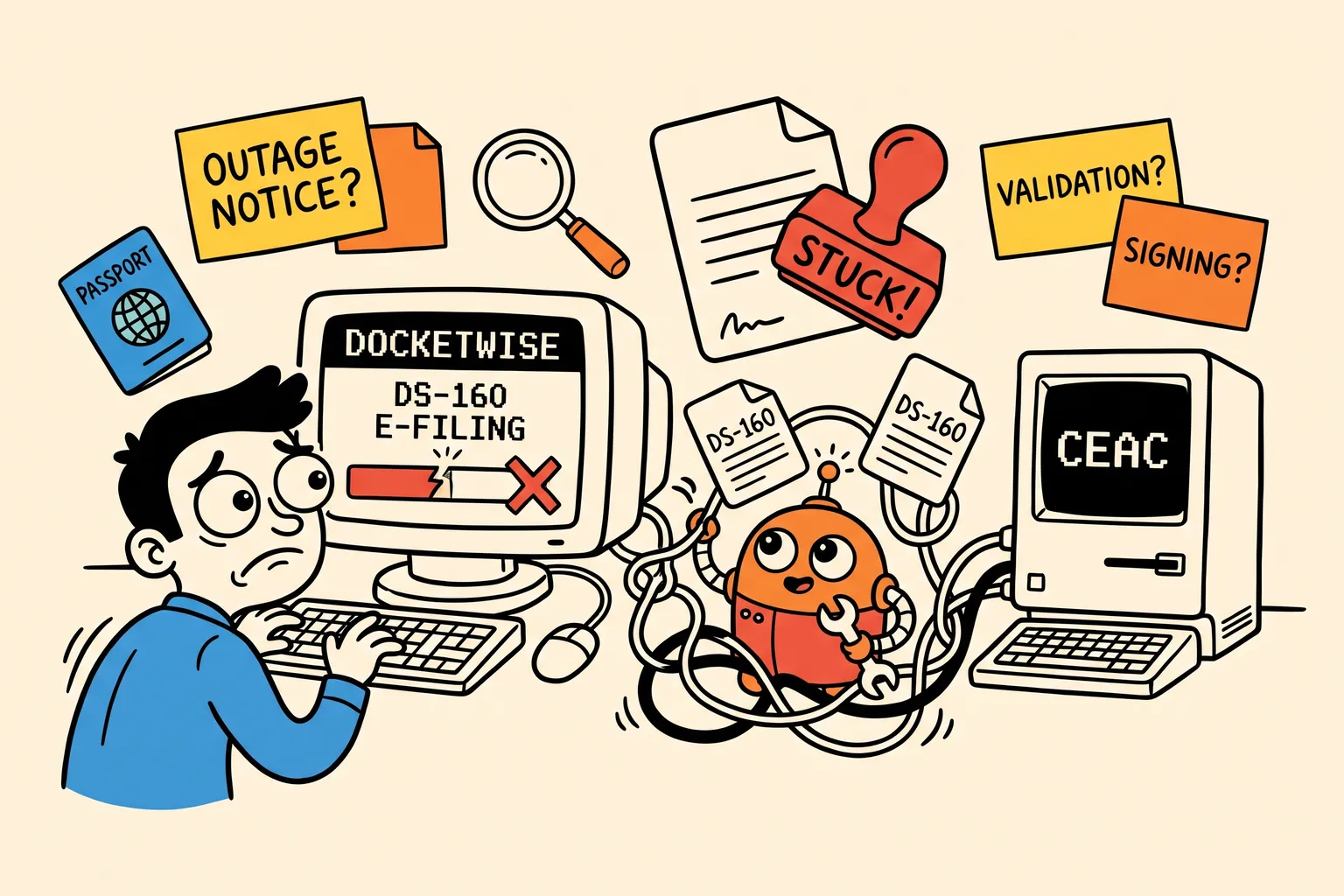
When Docketwise DS-160 e-filing isn’t working, the fix depends on where it stopped. There are four places it can stop: Docketwise’s own e-filing service, its validation check, the creation of the application on CEAC, or the signature on the State Department’s site. Find which one you’re at, and you’ll know whether to fix the answers, finish on CEAC or move the case elsewhere.
This guide takes them in order. Every claim about Docketwise comes from its own help centre or its in-app notice, and every claim about the DS-160 from the State Department.
Find where your DS-160 stopped
| What you’re seeing | Where it stopped | Go to |
|---|---|---|
| A “temporarily unavailable” notice on the e-file page | Docketwise’s e-filing service | Step 1 |
| An error listing fields to correct | Docketwise’s validation check | Step 2 |
| E-filing started, but no Application ID in the form | Creating the application on CEAC | Step 3 |
| An Application ID, but no confirmation page | Signing on CEAC | Step 4 |
| Answers missing or wrong on CEAC | The transfer to CEAC | Step 5 |
Two limits are documented, so they aren’t faults. Docketwise’s help article E-Filing Form DS-160 says DS-160 e-filing is available only on its Pro and Advanced plans, and that an application can’t be started until every answer is complete and in CEAC’s format. Anything else, such as a run that stalls or answers that don’t arrive, isn’t described in Docketwise’s documentation. Treat it as a support case.
Step 1: Check whether Docketwise e-filing is down
Before you change any answers, open the DS-160 e-filing page in Docketwise and look for a notice. On 1 October 2026, this one was on the page:
DOS CEAC E-Filing Temporarily Unavailable “We’re aware that e-filing through the Department of State’s CEAC system is temporarily unavailable. We’re actively working to resolve the connection to the Department of State’s consular systems. We’ll update this notice as soon as it’s back online. Thank you for your patience.”
If you see it, nothing in your Smart Form will fix the problem. Docketwise attributes it to its connection with the State Department’s systems. You can wait for Docketwise to restore the service, or file the case another way (see “What to do if the case is still stuck” below).
Step 2: Fix the validation errors in the Smart Form
Docketwise checks the questionnaire before it creates anything on CEAC. Its help article says that if you start e-filing while the Intake or Smart Form questionnaire is incomplete or wrongly formatted, an error message lists each field that needs correcting.
Use the links in the message, or go to each question yourself, and fix the answer to meet the requirement shown. When every item is resolved, choose Save and Validate to start the application again. An error at this stage is a problem with the answers, not with the system.
Step 3: Check that the application was created on CEAC
Once validation passes, Docketwise’s help article says you’ll see a confirmation that e-filing has started. When the application reaches CEAC, you get a bell notification and the retrieval details appear in the form.
Open the Intake tab of the DS-160 in Docketwise and look for the Application ID and the security question answer. If there’s no Application ID, the application hasn’t been created on CEAC. Go back to Step 2, or contact support (Step 6).
Step 4: Finish and sign the application on CEAC
Creating the application on CEAC is not the same as submitting the DS-160. Docketwise’s article says retrieving the application takes you to the form on CEAC “where you can complete the process”. To retrieve it:
- Go to the CEAC nonimmigrant visa page, choose the location the application was started for and enter the code shown.
- Choose Retrieve an Application and enter the Application ID from Docketwise.
- Enter the applicant’s surname, year of birth and the security question answer from Docketwise.
Then complete any remaining pages, review the application with your client, and sign it. Under 22 CFR 41.103, the DS-160 must be signed electronically by clicking “Sign Application”. The State Department’s DS-160 FAQ adds that the signature certifies the answers are true and correct, under penalty of perjury.
No confirmation page with a barcode means the application hasn’t been signed and submitted yet. Don’t leave it sitting: according to the same FAQ, you have 30 days to come back to an unsubmitted application.
Step 5: Check the answers on CEAC before anyone signs
Compare the CEAC pages with the original questionnaire before signing, whichever tool filled them in. The answers most worth checking:
- Passport details: number, issue and expiry dates, and issuing country.
- Work and education history: employers, schools and their dates.
- Travel history: previous U.S. visits and their dates.
- E visa details: for treaty trader and treaty investor cases, the business and position pages. Some E applicants also need the separate DS-156E, as the State Department’s DS-160 FAQ explains.
Every answer must be in English. The FAQ warns that an application in another language will be denied, and the applicant may have to submit a new one.
Step 6: Contact Docketwise support
If the run stalls, or answers are missing on CEAC, don’t experiment on a live client file. Contact Docketwise support through its help centre, with:
- the exact text of the error
- the date and time of the attempt
- the step that failed: validation, starting the application, the notification or retrieval
- screenshots, with client details redacted
What to do if the case is still stuck
You have three ways forward:
- Finish the existing application on CEAC by hand. If it was created and you have its Application ID, follow Step 4. This keeps the Application ID, which matters if it’s already tied to an appointment.
- Wait for Docketwise. For a one-off problem, or a firm that files few DS-160s, working with Docketwise support is often simplest.
- File the affected cases with a DS-160 specialist, and keep Docketwise for case management.
DS160.io is one example of the third option. It handles the DS-160 only: intake, review and filing to the CEAC confirmation page. Your matters, other forms, billing and client records stay in Docketwise, so you don’t migrate your practice to change how you file one form.
How to move a stuck Docketwise DS-160 into DS160.io
You don’t need to retype the answers. There are two ways to bring a Docketwise DS-160 across.
If Docketwise created the application on CEAC: import it from CEAC
If you have an Application ID from Step 3, DS160.io can read the application back from CEAC. Choose New DS-160 form → Import from CEAC and enter the location, the Application ID, the applicant’s surname and year of birth, and the security question answer. An application that was never submitted is read as it was last saved. The full steps are in Importing a DS-160 from CEAC.
If it never reached CEAC: import the Smart Form PDF
- In Docketwise, open the client’s DS-160 Smart Form at its Intake step.
- Open the actions menu (the printer icon) and choose Print questions.
- In the tab that opens, print and choose Save as PDF in Chrome. Under More settings, turn on Background graphics: without it, answers chosen with buttons and checkboxes are left out.
- In DS160.io, choose New DS-160 form → Import from Docketwise and upload the PDF.
- Check the preview before the form is created. It shows the applicant’s key details, the answers going into each section, answers to look at again, and anything that couldn’t be carried over, with the reason.
The full steps are in Creating a Form.
Then file it
DS160.io fills in every page on CEAC, uploads the photo and works through the review pages. It then signs and submits, returning the confirmation page, or stops before signing so your attorney reviews and signs on CEAC. Turn on Stop before signing for the whole workspace, or tick it when you start a single submission. Either way you get a PDF of every page CEAC showed. See E-Filing the DS-160.
Filing from DS160.io starts a new application with a new Application ID. It doesn’t continue the one Docketwise created, even when you imported its answers from CEAC. If you need to keep that Application ID, finish it on CEAC instead (option 1 above).
Docketwise vs DS160.io for the DS-160
They solve different problems. Docketwise is general immigration case management: intake, Smart Forms across USCIS and State Department forms, deadlines and billing. DS160.io covers only the DS-160.
| Docketwise | DS160.io | |
|---|---|---|
| What the e-file does | Creates the application on CEAC | Fills in every page, uploads the photo, works through review |
| Who finishes the form | Your team, on CEAC | DS160.io |
| Signing | Your team, on CEAC | DS160.io signs, or stops so the attorney signs |
| Record of the filing | Not described in the help article | PDF of every CEAC page |
| Plans with e-filing | Pro and Advanced | Every business workspace |
For pricing and the September 2026 changes at Docketwise, see Switching from Docketwise for DS-160 E-Filing. For the feature-by-feature breakdown, see DS160.io vs Docketwise.
Frequently asked questions
Is Docketwise DS-160 e-filing working?
On 1 October 2026, Docketwise’s in-app notice said e-filing through CEAC was “temporarily unavailable” and that it was working to restore the connection to the State Department’s systems. Check the e-filing page in Docketwise, or ask Docketwise, for the current status.
Does Docketwise submit the DS-160 for me?
Docketwise’s help article describes creating the application on CEAC, which you then retrieve and complete there. It doesn’t describe Docketwise signing on the applicant’s behalf. Check with Docketwise if you’re unsure.
Why do I still have to open the DS-160 on CEAC?
A DS-160 counts as submitted only once it’s signed electronically with “Sign Application”. Only a signed application produces the confirmation page with its barcode.
Can I use DS160.io without leaving Docketwise?
Yes. DS160.io handles only the DS-160, so Docketwise can stay your case management system.
Can I import a DS-160 I started in Docketwise?
Yes, two ways. If Docketwise created the application on CEAC, import it from CEAC with its Application ID. Otherwise, import a PDF of the Smart Form saved with Print questions. Either way, filing from DS160.io starts a new application with a new Application ID.
Can the attorney review the DS-160 before it’s signed?
Yes. With Stop before signing, every page is filled in and the PDF is saved, then the run stops at the Sign and Submit page. Your attorney reviews the application on CEAC and signs it there.
DS160.io is independent and not affiliated with, endorsed by or sponsored by Docketwise or 8am. Docketwise is a trademark of its owner. What this post says about Docketwise comes from its help centre and in-app notice as of November 2026; check its current documentation before relying on it.