Document Storage and Automated Photo Upload
Collect passport scans and visa photos directly from your clients through the intake link, store them securely, and let the agent upload the photo to the official DS-160 portal automatically.
Document Storage and Automated Photo Upload
Two new features that work together: clients can upload their visa photo and passport scan through their intake link, and when the form runs the agent uploads the photo to the official DS-160 portal automatically. No more emailing JPEGs back and forth, no more handing the photo step over to a human.
Two Document Slots per Form
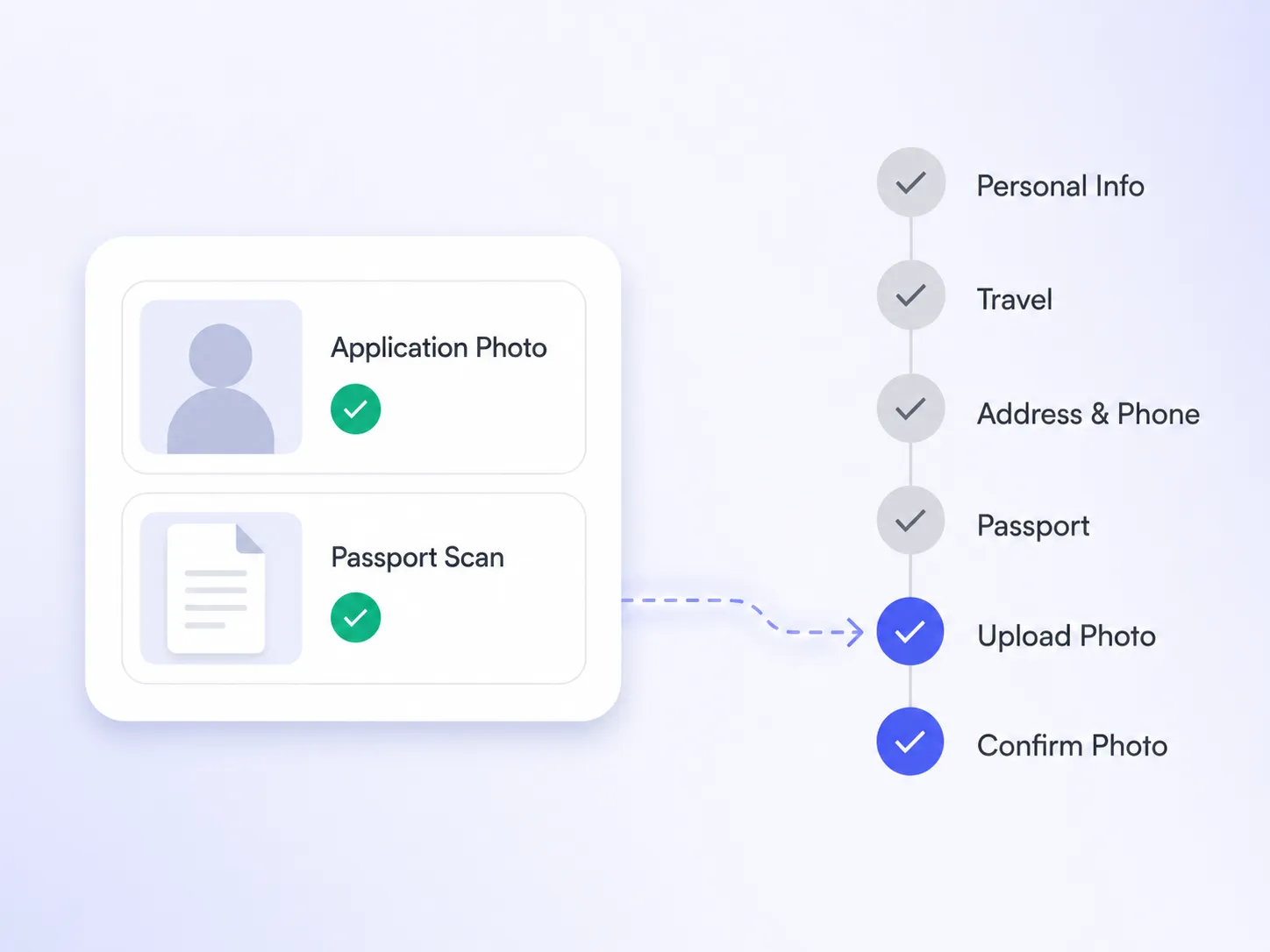
Every DS-160 form now has two document slots:
- Application photo — the visa photo required by the State Department’s Photo Submission System (JPEG, up to 240 KB, 600×600 to 1200×1200 square).
- Passport scan — a scan or photo of the applicant’s passport biographic page (JPEG, PNG, or PDF, up to 10 MB).
Both slots live on the form itself, alongside the questionnaire answers. You can manage them from the Documents panel on the form overview, and your clients can manage their own copies through the intake link.
Client-Side Upload
When you generate a client intake link, the client now sees a Documents step alongside the questionnaire. They can:
- Upload, replace, or delete each document themselves
- See real-time validation feedback (file size, format, basic biometric checks)
- Continue completing the form even before documents are attached
Documents are validated as they’re uploaded — the photo runs through the same checker that powers our public visa photo checker, so most issues surface immediately instead of being discovered at the State Department’s photo system.
Smarter Photo Validation
We took the chance to tighten the photo validator while we were in the area. Two checks that used to fail photos that the official DS-160 portal would happily accept have been demoted from hard rejections to advisory warnings:
- DPI mismatch — 300 DPI is only required for printed photos used with DS-260 immigrant visa applications and the physical photo some consulates require at the interview. The digital DS-160 upload has no DPI requirement, so a 72-DPI photo no longer gets blocked.
- 2×2-inch print size — same story. It applies to printed photos, not to the digital upload.
The validator still surfaces both as warnings so clients with applications further down the line (DS-260, interview) get a heads-up. But they no longer prevent a valid digital photo from being uploaded.
Secure Storage
Documents are stored in object storage with server-side encryption at rest. The dashboard never exposes the underlying bucket key — every download URL is short-lived and signed, so a leaked link can’t be used past its TTL.
When a client replaces a document, the old version is soft-deleted in the database and removed from storage. We keep the metadata for audit purposes but the file itself is gone.
Automated Photo Upload
Here’s where the two features meet: when the agent runs a submission with an application photo attached, the agent now drives the State Department’s Photo Submission System end-to-end. No human intervention.
The agent:
- Reaches the Upload Photo step in the DS-160 flow.
- Sends the photo to the State Department’s photo system.
- Waits for the quality-check result page and clicks “Continue Using this Photo”.
- Returns to the DS-160 form and advances to Confirm Photo.
- Reports both steps back to the dashboard.
You see the photo-related steps in the submission progress view the same way you see questionnaire steps — “Upload Photo” and “Confirm Photo” appear after the form sections, with completion status and timestamps.
Forms without an application photo attached skip both steps entirely. There’s no behavior change for clients who don’t supply a photo through us.
What This Enables
Fully automated submissions — As long as the questionnaire is complete and the application photo passes our validation, the agent can take a submission from start to finish without anyone touching it.
Quality control before submission — You see what the client uploaded, and the validator tells you up front whether it’ll pass the State Department’s photo system. Reject and re-request before you spend a submission credit.
Audit trail — Document uploads, replacements, and deletions all carry source attribution (client link vs. authenticated user) so you can see who did what.
Quick Reference
| What | Where |
|---|---|
| Application photo limits | JPEG, ≤ 240 KB, 600×600–1200×1200 square |
| Passport scan limits | JPEG / PNG / PDF, ≤ 10 MB |
| Agency document panel | Form Overview → Documents |
| Client document panel | Intake link → Documents step |
| Automated photo upload | Runs whenever a form with an attached photo is submitted |
| Progress view | Submission detail → step list (Upload Photo / Confirm Photo) |
For step-by-step setup and the full client experience, see the new Document Storage and Photo Automation doc.